


Forma: PDF Editor & Converter
4.445.00 Reviews
App Specs
- Version
- 1.20.11
- Updated On
- License
- Free
- Downloads
- 100,000+
- Developer
- BP Mobile LLC
- Categories
- Business
- Platform
- Android
Screenshots
 Analysis by AppCompare
When I need to deal with a PDF away from my desk, the hard part is often not the edit itself but getting the document from my phone into a form I can actually use. Forma: PDF Editor & Converter is built for that kind of stopgap workflow: it brings editing, conversion, document creation and signing together in a mobile business app. I’d reach for it when a file needs a quick adjustment or a form needs to go back the same day, rather than waiting until I’m at a computer.
When a document lands on your phone
A realistic use case is a form arriving while you’re out: you need to check the details, fill in the relevant fields, add a signature and return a usable file. Forma’s appeal is that those jobs sit within one app, so there’s less need to bounce between a PDF reader, a separate signing tool and a converter. That does not make every document effortless, but it does make the phone a more practical place to handle routine paperwork.
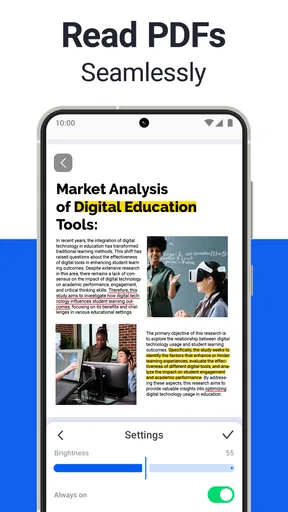
It is a business app from BP Mobile LLC, but I don’t think you need a formal office role to get value from it. Freelancers, students handling administrative forms, and anyone who occasionally receives a document that needs signing can benefit from having these tools close at hand. If your PDF work is mostly reading and highlighting, though, a lightweight reader may be simpler; Forma makes more sense when you expect to change or produce files.
Getting Started with Forma: PDF Editor & Converter
First things first, downloading Forma: PDF Editor & Converter was a breeze. It’s available for both Android and iOS, so no one’s left out of the loop. Once installed, you’re greeted with a clean, user-friendly interface that doesn’t overwhelm you with a million options. I appreciate an app that’s straightforward; it feels like they’re respecting my time.
Key Features
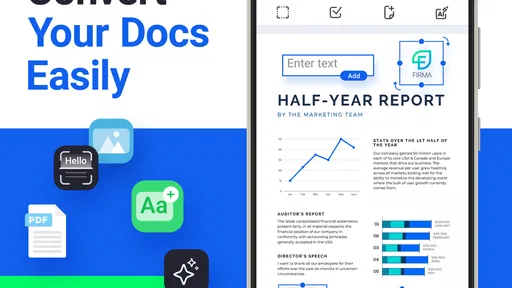
What really stands out about Forma is its versatility. You can edit, convert, and even create PDFs from scratch. Need to make a quick adjustment to a document? No problem. Want to convert a PDF into a Word or Excel file? Easy peasy.
Here are some of the features I found most useful:
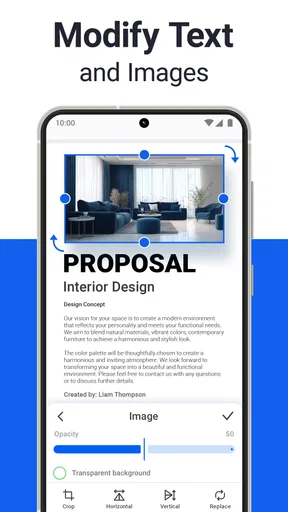
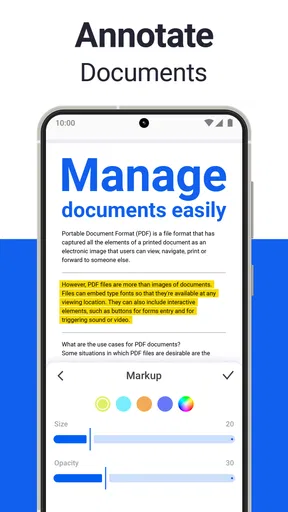
- Edit PDFs: Whether it’s adding text, images, or annotations, Forma makes editing PDFs feel like a walk in the park.
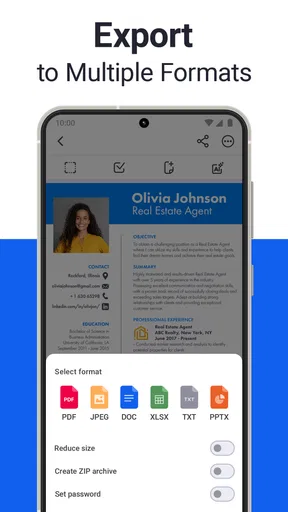
- Convert Files: Converting PDFs to other formats like Word, Excel, or even images is straightforward and quick.
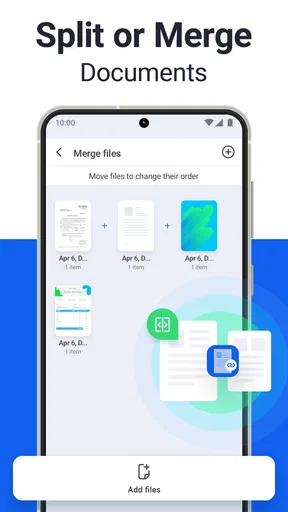
- Merge and Split: You can easily merge multiple PDFs into one or split a single PDF into multiple files.
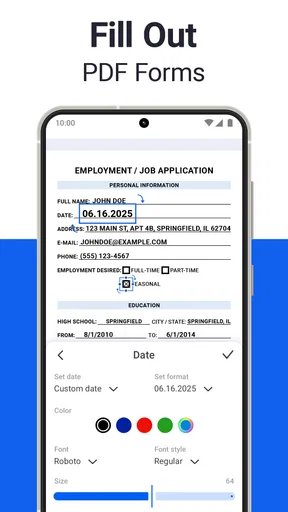
- Fill Forms: Filling out forms digitally is a breeze, and you can even sign documents with an electronic signature.
A practical route from source file to finished PDF
For a clean handoff, I’d start by deciding what the recipient actually needs. If they need to review or reuse the contents, converting a PDF to Word or Excel may be more useful than sending an edited PDF. If the layout must stay intact, editing or signing the PDF itself is the safer route. That small choice up front can prevent the common annoyance of sending a file that looks fine on your phone but is awkward for someone else to work with.
Worth Reading Before You Choose

EA SPORTS FC Mobile 26 Is a Bigger Football Game, but It Takes Time

Flipboard Shows What News Apps Must Do Beyond the Feed

Switching to Android Auto Means Rethinking Your Driving Routine

Google Calendar Makes a Crowded Week Easier to Manage

Ludo King Makes the Most of the Minutes Between Plans

Baby Panda World Brings Quick Play to Modern Phones, but Its Game Library Feels Busy
When several pages or documents belong together, merging them before sharing can make the handoff easier to follow. I’d put the pages in the intended order first and check the combined document before sending; a merge saves the recipient from opening separate files, but it can also make a mistaken page order harder to spot. Splitting is useful in the opposite situation, such as sharing only the relevant portion of a longer document rather than forwarding everything.
For forms, I’d treat the signature as the final step, not the first. Check that the fields are complete and the document is the right version before signing, then reopen the output to make sure the signature and surrounding text remain legible. This is a simple habit, but it matters when the file is being sent onward for approval or recordkeeping.
Using the App
Once you dive into the app, you’ll notice how intuitive it is. The layout is sleek, and everything is where you’d expect it to be. I tried out a few different tasks – editing some text, converting a file, and merging a couple of PDFs. Each task was hassle-free, and I didn’t have to deal with any frustrating loading screens or crashes.
I particularly enjoyed the conversion feature. I’ve had too many experiences where converted files end up looking like a mess, but Forma seems to maintain the original formatting pretty well. That’s a big win in my book!
What conversion changes about the handoff
Even a well-preserved conversion deserves a quick check. PDFs with dense tables, unusual spacing or carefully positioned graphics can behave differently once they become editable Word or Excel files. I’d use the converted version as a working copy, then inspect headings, columns and page breaks before passing it to a colleague. When exact visual presentation matters more than editing, keeping the PDF as the final deliverable is usually the less risky choice.
That trade-off is where Forma’s all-in-one approach helps, but it does not remove the need to choose the right format. A converted file is convenient when someone needs to revise content; a signed PDF is more appropriate when the aim is to return a completed document without inviting further edits. I would not assume that converting every file is an improvement—the recipient’s next step should guide the decision.
Performance and Reliability
So, let’s talk performance. I used the app on a mid-range Android device, and it ran smoothly without any hiccups. The app’s response time was quick, and I didn’t encounter any bugs. It’s reliable, which is crucial for anyone who needs to get work done efficiently.
Storage-wise, it doesn’t hog a lot of space, which is a relief if you’re like me and constantly battling with your phone’s storage limits.
Where a phone workflow can fall short
Mobile editing is most comfortable for short, focused jobs. I would not choose a phone as my main workspace for a long contract, a complex report, or a document that needs extensive rewriting and careful page-by-page layout checks. A larger screen and desktop editing tools make it easier to compare sections, catch subtle formatting changes and manage many files at once. Forma is better as a capable pocket tool than as a replacement for every part of a desktop document workflow.
There is also a practical distinction between making a quick correction and rebuilding a document. Adding a note, filling a form or preparing a file for sharing is a natural mobile task. If the source is badly formatted or the content needs major structural changes, I’d move to a computer rather than spend time trying to make a small screen do a large-screen job.
Pricing and Accessibility
The app is free to install, with in-app purchases ranging from $0.99 to $69.99 per item. That makes it reasonable to try before deciding whether it fits your routine, but I would check the available purchase details in the app before relying on a particular tool for repeated work. The cost can matter if you only sign a document once in a while, while someone who regularly edits and converts files may find a broader toolkit more useful.
In terms of accessibility, it’s designed to be user-friendly for everyone, from tech newbies to seasoned pros. You don’t need a tutorial to get started, which makes it perfect for on-the-go use.
Forma is rated for Everyone and has a 4.6 average from around 4.9K ratings, with 100K+ installs. It was released on Dec 27, 2024, and version 1.19.9 requires Android 11 or later. Those details make it worth checking device compatibility before installing, especially if you keep an older phone in service.
Who benefits most, and who should look elsewhere
I’d recommend it to someone who handles mixed PDF tasks often enough to value having editing, conversion, merging, splitting and signing in one place. A freelancer preparing a form between appointments, for example, can make a correction, sign it and send a finished document without first returning to a laptop. It is also a handy option when a document arrives in the wrong format and needs a quick, practical change before it can be passed along.
On the other hand, people who need advanced desktop publishing controls, extensive batch processing or a dedicated document-management system should compare it with tools built for those jobs. Likewise, if all you need is to read PDFs, a basic reader may keep the experience simpler. Forma’s strength is breadth on a phone, not a promise that every complicated office workflow will feel better there.
Final Thoughts
All in all, Forma is a robust app that does exactly what it promises. It’s efficient, user-friendly, and packed with features that cater to both casual users and professionals. I’d recommend giving it a shot if you’re in the market for a reliable PDF tool.
Whether you’re editing, converting, or managing your PDF files, Forma simplifies the process, making your digital life a little easier. If you’re tired of clunky, unreliable PDF apps, this one’s definitely worth a download.
My recommendation after following the workflow
What I like most is the way the app supports the whole short-document journey: take a file that needs attention, make a focused change, choose whether to preserve or convert its format, and prepare it for someone else. The useful habit is to review the finished file from the recipient’s point of view before sending it. That catches the kinds of issues a quick edit can hide, such as an unintended page order or a conversion that needs a final visual check.
Forma: PDF Editor & Converter is a good fit when convenience and a range of everyday PDF tools matter more than deep desktop control. I’d keep it in mind for forms, routine edits and format handoffs, while turning to a computer for intricate documents or high-stakes layout work. That is a clear and useful role for a mobile business app: it helps me finish ordinary paperwork while I’m away from my desk, without pretending that every document is best handled on a phone.
Pros
- Intuitive interface makes editing easy.
- Supports various file formats seamlessly.
- Fast conversion speed enhances productivity.
- Offers robust annotation tools for precision.
- Cloud integration simplifies file access.
Cons
- Limited features in the free version.
- Occasional crashes on older devices.
- Some tools are not user-friendly.
- Ads can be intrusive in free mode.
- Requires internet for full functionality.
FAQs for Forma: PDF Editor & Converter
What features does Forma: PDF Editor & Converter offer?
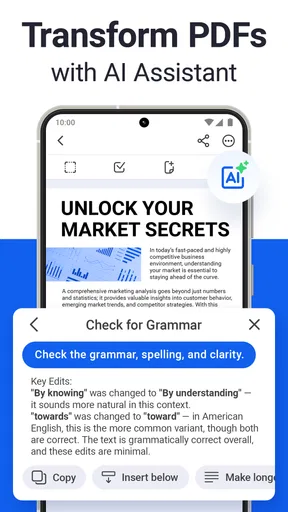
Forma: PDF Editor & Converter provides a comprehensive set of tools for editing PDFs. You can annotate, highlight, and add text or images. It also supports converting files to and from PDF format. The user interface is intuitive, making it accessible for both casual users and professionals.
Is Forma: PDF Editor & Converter free to use?
While Forma offers a free version with basic functionalities, advanced features may require a subscription. The free version allows for simple edits and conversions, but for more complex tasks, such as batch processing or advanced editing tools, users might need to upgrade to a premium plan.
How secure is my data when using Forma: PDF Editor & Converter?
Forma prioritizes user security by implementing encryption protocols to protect your files. The app ensures that your documents are not stored on their servers without your consent, maintaining privacy and confidentiality. Always check for updates to ensure you have the latest security enhancements.
Can I use Forma: PDF Editor & Converter offline?
Yes, Forma allows users to edit and convert PDFs offline once the app is installed. This is particularly useful for users who need to access and modify documents without an internet connection, ensuring productivity in any environment.
What file formats are compatible with Forma: PDF Editor & Converter?
Forma supports a variety of file formats for conversion including Word, Excel, PowerPoint, and images like JPEG and PNG. This versatility helps users manage different types of documents efficiently, making it a valuable tool for both personal and professional use.


